
Forms & inputs
The right keyboard for each field is the kind of detail users notice when it's wrong
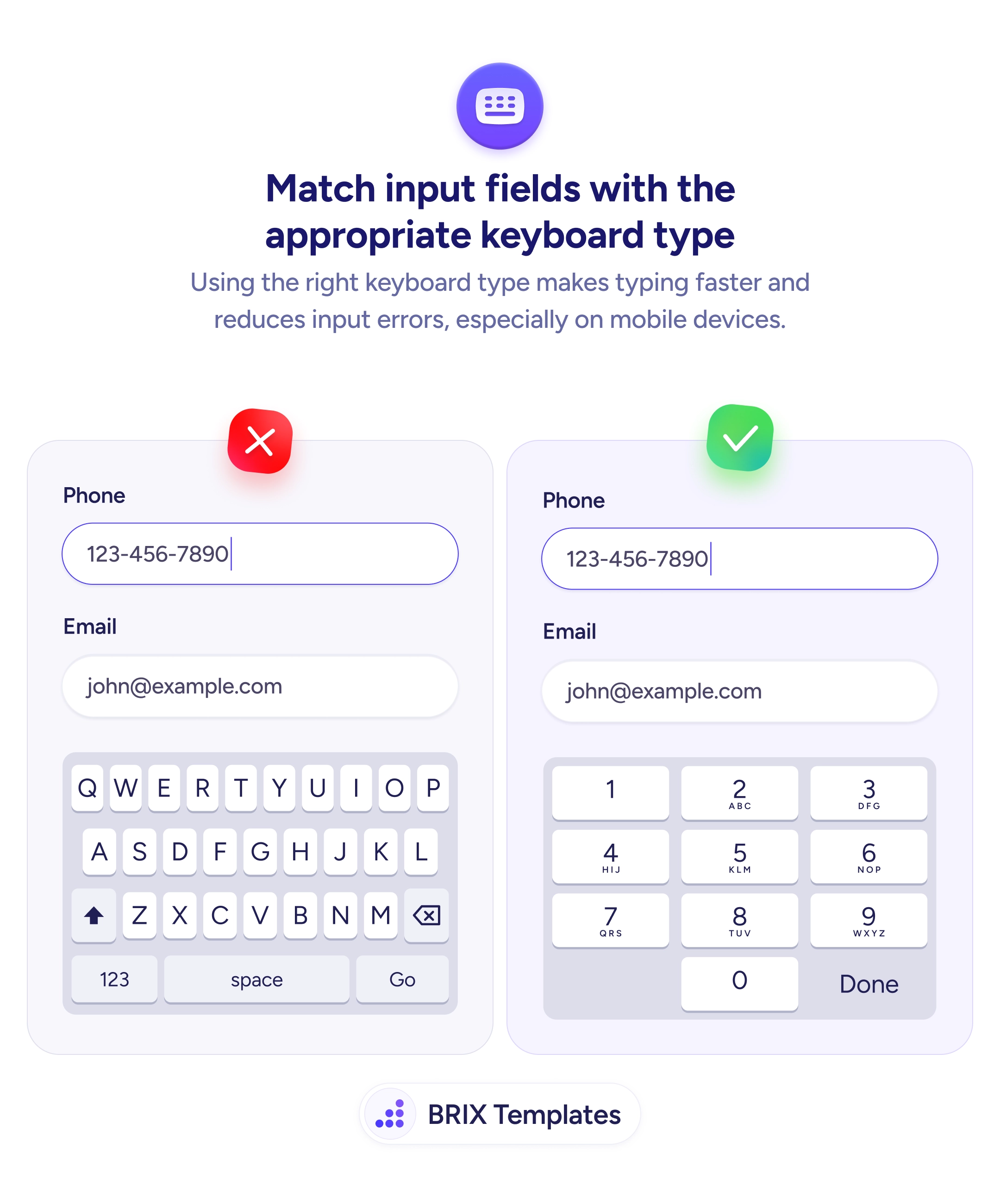
Showing a text keyboard for number fields forces users to switch modes. Set the right input type so the correct keyboard appears automatically.

Forms & inputs
The right keyboard for each field is the kind of detail users notice when it's wrong
Showing a text keyboard for number fields forces users to switch modes. Set the right input type so the correct keyboard appears automatically.
When a mobile form shows a QWERTY keyboard for a phone number field, users have to switch to the numeric mode manually before they can type a single digit. That extra step — small as it seems — adds friction at the exact moment the user is trying to complete a task. Over a full form with multiple mismatched fields, the cumulative frustration can drive users to abandon.
The fix is straightforward: set the correct input type on each form field so the appropriate keyboard appears automatically. A phone field should trigger the numeric keypad, an email field should show the keyboard with @ and .com shortcuts, and a URL field should surface the keyboard with / and . keys. This is a one-line HTML attribute change that removes an entire category of friction.
Audit every input field in your forms and check which keyboard appears on a real mobile device. Use type="tel" for phone numbers, type="email" for email addresses, and type="url" for URLs. Test on both iOS and Android — keyboard behavior can differ slightly between platforms. Don’t rely on type="number" for phone fields — it’s designed for quantities, not phone formatting.
type="tel" on phone number fields to trigger the numeric keypad automatically.type="email" on email fields to surface the keyboard with @ and .com shortcuts.type="number" for phone fields — it’s meant for quantities and may show increment spinners.Matching each field to its correct keyboard type is one of the simplest mobile UX improvements available. It eliminates a small but real source of friction that users notice every time it’s wrong — and never think about when it’s right.
Use type='tel'. This triggers the numeric dial pad on mobile devices, which is the fastest way for users to enter phone numbers. Avoid type='number' — it's designed for quantities and may show increment arrows.
It shows a standard QWERTY keyboard with the @ symbol and .com shortcut easily accessible. This small change saves users from hunting for special characters needed in every email address.
Use type='tel' for phone numbers and type='number' only for quantities (like item counts). Type='number' can add increment/decrement spinners and may not support phone formatting characters like dashes or parentheses.
Open the form on a real mobile device (both iOS and Android) and tap into each field. The keyboard that appears should match the expected input type. Emulators can show keyboards but may not reflect exact platform behavior.